Build Action Cards once, reuse them anywhere
When you add a Send card step, you can now reuse, copy, or import an existing card template instead of starting from blank.

Jake Dale
—
If your team has ever rebuilt the same Action Card from scratch just to use it in a different Action Flow, you know how much time that copy-paste tax adds up to. Today we’ve removed that tax.
Now, when you add a send-card step to an Action Flow, you have three new ways define the card template that step uses - not just starting with a new blank template.
What changes for your team
The old behaviour was simple but rigid: every send-card step started with a new, empty template. Great for the first card, but painful for the second, third, etc. Users had to manually copy card configuration between Action Flows and also delete the new empty templates every time they wanted to re-use an existing card template.
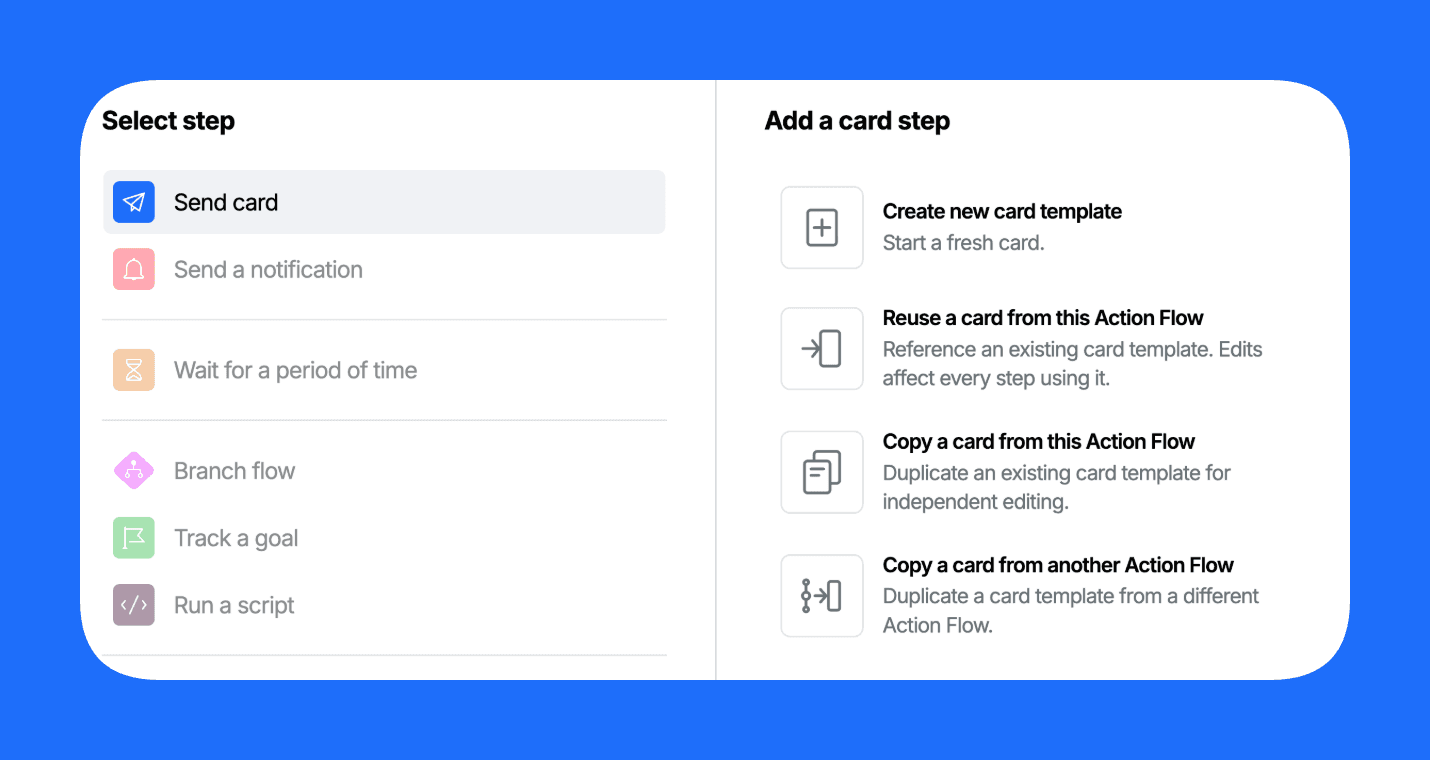
With this new feature, after you click Send card in the add-step menu, an inline picker offers four options:
Create new card template - the current default. Starts you on a blank canvas.
Reuse a card from this Action Flow - point the new step at a template you've already built in this Action Flow. Edits flow through to every step using it - perfect for keeping a consistent brand experience inside a single journey.
Copy a card from this Action Flow - duplicate an existing template so the new step can be tweaked independently. Great for A/B variants or starting from an established template.
Copy a card from another Action Flow - pull in a template from any other Action Flow in your environment and drop it into this one. The copy is yours to edit.
Why this matters
Your templates are now within easy reach when you are creating a new Action Flow. This means you’ve got a simple way to start from an established card design and make simple tweaks within an environment - speeding up your workflow.
You can also now have Action Flows that contain standard card templates that you often want to build upon and easily pull these in at edit time, rather than performing a clunky copy process across screens.
💡 Tip: Create a dedicated "Templates" folder in your Workbench and use it to store Action Flows that contain your most-used card designs. When you need one in a new flow, just copy it across - no rebuilding from scratch.
Get started
The picker is live in the Workbench now - just add a new Send card step to any Action Flow.
Want to give this a try but don’t know where to start? Talk to us, we'd love to show you what's possible.
About the author
Jake Dale
Head of Engineering
Jake leads the engineering teams at Atomic. When he’s not architecting, coaching and engineering Jake is supporting and working with our customers to make the most of in-app messaging through Atomic.



